
Description
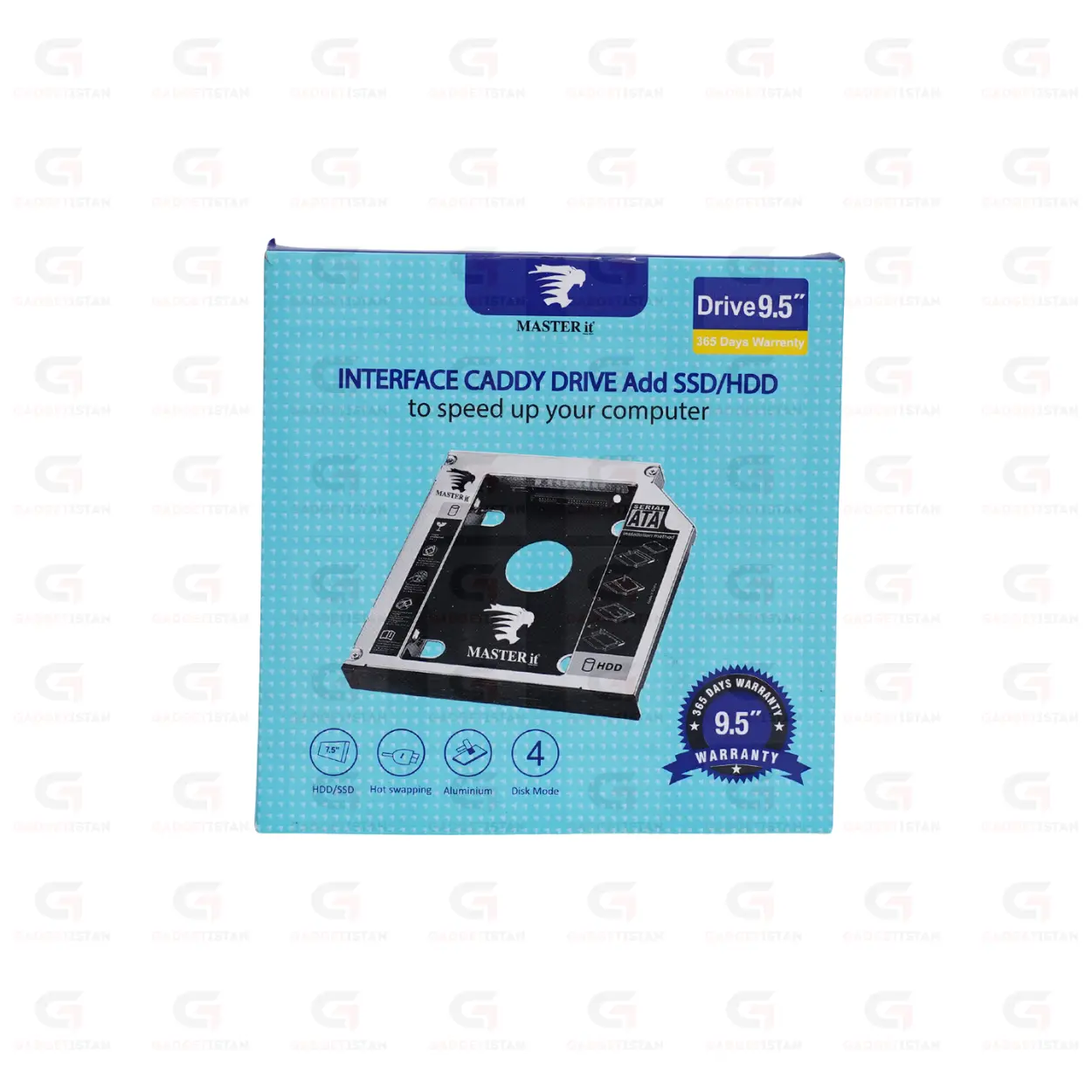
Interface Master It Caddy Drive for SSD and HDD – Replace Your Laptop DVD Drive with Extra Storage
The Interface Master it Caddy drive for SSD/HDD is a SATA-to-SATA adapter that lets you replace your laptop’s optical DVD drive with a 2.5-inch SSD or HDD. It fits into the standard optical drive bay on most laptops and connects through the existing SATA interface on the motherboard. No drivers are required and no operating system changes are needed. Once installed, the drive inside the caddy appears as a second internal storage device alongside your existing primary drive.
This is one of the most cost-effective laptop upgrades available. Instead of replacing your current drive, you add a second one. You can keep Windows on your existing drive and use the new SSD for applications, or use the new HDD for bulk file storage, without buying a new laptop.
Available at Gadgetistan | Price: Rs 1100 | Fast delivery across Pakistan
What Is a Laptop Caddy Drive and How Does It Work?
Most laptops built before 2018 include an optical drive bay for a DVD or CD drive. On modern laptops, this bay sits unused because users stream content rather than read physical discs. A caddy drive replaces the optical drive in that bay with a metal or plastic enclosure that holds a standard 2.5-inch SATA drive instead.
The caddy slides into the same bay the DVD drive occupied and connects to the same SATA data and power connector on the motherboard. The laptop’s BIOS and operating system recognize the new drive automatically as a second internal storage device. No drivers are needed because SATA is a natively supported interface on Windows, macOS, and Linux.
The result is a laptop with two internal drives: the original primary drive in the main drive bay, and a second SSD or HDD in the caddy in the optical bay.
Caddy Thickness – 9.5mm and 12.7mm Options
Laptop optical drive bays come in two standard heights: 9.5mm and 12.7mm. Choosing the wrong caddy thickness means it will not fit properly in your laptop’s bay.
The 9.5mm caddy fits slim and ultrabook-class laptops where the optical bay is shallower. The 12.7mm caddy fits older and thicker laptops where the optical bay has more vertical clearance. Check your laptop’s optical drive height before ordering. The height is usually printed on a label on the side of the existing DVD drive, or listed in your laptop’s service manual.
This caddy supports drives up to 9.5mm in thickness. Standard 2.5-inch HDDs are available in both 7mm and 9.5mm heights. Standard 2.5-inch SATA SSDs are almost always 7mm. Both fit inside this caddy without issue.
SATA III Interface – Up to 6Gbps Transfer Speed
The caddy uses a SATA-to-SATA interface, connecting to your laptop’s optical bay SATA port. SATA III supports a theoretical maximum of 6Gbps data transfer. In practice, actual transfer speeds depend on which SATA generation your laptop’s optical bay port supports.
Most laptops have a SATA III port on the primary drive bay but some have a SATA II port on the optical bay, which limits speed to 3Gbps. Check your laptop’s service manual or specifications page to confirm the optical bay SATA generation. For an SSD installed in the caddy, SATA II still delivers read speeds of around 200 to 250 MB/s, which is dramatically faster than a spinning HDD.
If you are installing an HDD rather than an SSD, SATA generation makes no practical difference because HDDs rarely exceed 150 MB/s sequential read speed.
SSD or HDD – Which Drive to Install in the Caddy?
The caddy supports any standard 2.5-inch SATA SSD or HDD. The choice of which drive to install depends on what you want to achieve.
Installing an SSD in the caddy alongside your existing HDD gives you a fast drive for the operating system and applications and a large drive for files and media. This is the most common upgrade scenario and produces a noticeable improvement in boot time and application launch speed.
Installing an HDD in the caddy alongside your existing SSD gives you high-capacity storage for documents, photos, videos, and backups without replacing your fast primary drive.
The caddy does not support NVMe M.2 drives. It is designed specifically for 2.5-inch SATA drives in 7mm or 9.5mm heights.
Compatible Laptops
The caddy is compatible with most laptops that have a standard 9.5mm or 12.7mm optical drive bay. This includes a wide range of HP, Dell, Lenovo, Acer, Toshiba, and Samsung laptops. Specific compatibility depends on the bay height and the SATA connector type used in your laptop’s optical bay.
Before purchasing, confirm two things. First, that your laptop has a replaceable optical drive bay rather than a soldered or non-standard optical unit. Second, that the bay height matches the caddy size you are ordering. Both pieces of information are in your laptop’s service manual, which is available free from the manufacturer’s support website.
MacBooks with optical drives are generally compatible, though some older MacBook Pro models use proprietary optical bay connectors rather than standard SATA. Check your specific MacBook model before ordering.
Installation Process
Removing the optical drive and installing the caddy takes 10 to 20 minutes on most laptops and requires only a small Phillips screwdriver. The general process is as follows.
Power off the laptop and remove the battery if it is removable. Locate the optical drive bay panel on the side or bottom of the laptop. Remove the screws securing the optical drive and slide it out. Insert your SSD or HDD into the caddy, secure it with the caddy’s mounting screws if included, and slide the caddy into the bay. Replace the screws and power on the laptop.
The new drive appears automatically in Windows Disk Management, macOS Disk Utility, or the Linux file manager. If it is a new unformatted drive, you will need to initialize and format it before use. This is a one-time step.
A bezel adapter is sometimes included to replace the optical drive’s front panel with a matching blank panel.
Who Should Buy This Caddy?
This caddy is well suited to anyone who wants to expand laptop storage without buying a new machine. It is particularly useful for students and professionals whose laptops have filled up with files and who need more space for projects, media, or backups. It also suits users who want to add an SSD for speed without giving up their existing large HDD.
It is not compatible with laptops that do not have an optical drive bay, including most ultrabooks and thin laptops made after 2016. It is also not suitable for users who frequently use their DVD drive, since installing the caddy means the optical drive is removed.
If your laptop has an optical drive you never use, this caddy is one of the highest-value upgrades you can make for the price.
Technical Specifications
| Specification | Details |
| Product Type | Laptop HDD/SSD Caddy Drive |
| Interface | SATA to SATA |
| Supported Drive Size | 2.5-inch SSD and HDD |
| Supported Drive Heights | 7mm and 9.5mm |
| Caddy Thickness Options | 9.5mm and 12.7mm |
| Max Transfer Speed | Up to SATA III (6Gbps, laptop port dependent) |
| NVMe Support | No (SATA only) |
| Material | Aluminium |
| Installation | Tool-free drive insertion, screwdriver for bay |
| Drivers Required | No |
| Supported OS | Windows, macOS, Linux |
| Compatible Brands | HP, Dell, Lenovo, Acer, Toshiba, Samsung |
| Bezel Included | No |
| Price (Pakistan) | Rs 1100 |
Fill in before publishing: price in Rs, whether a bezel adapter is included, exact caddy material for this specific model, and cable or screw accessories included in the box.
Frequently Asked Questions
What is a laptop caddy drive and what does it replace?
A laptop caddy drive is an enclosure that fits into your laptop’s optical drive bay in place of the DVD or CD drive. It holds a standard 2.5-inch SATA SSD or HDD and connects through the same SATA interface that the optical drive used. The result is a second internal drive inside your laptop. Your original primary drive stays in place, and the caddy adds a second drive in the now-empty optical bay. No drivers or operating system changes are needed.
How do I know which caddy thickness to order, 9.5mm or 12.7mm?
The correct thickness depends on your laptop’s optical drive bay height. Check the label printed on the side of your existing DVD drive. It will state the drive height as either 9.5mm or 12.7mm. Alternatively, look up your laptop model’s service manual on the manufacturer’s website. Ordering the wrong thickness means the caddy will not fit correctly in the bay, so confirming this before purchase is important.
Does this caddy work with SSDs and HDDs?
Yes. It accepts any standard 2.5-inch SATA SSD or HDD in 7mm or 9.5mm heights. Most SATA SSDs are 7mm. Most 2.5-inch laptop HDDs are available in both 7mm and 9.5mm. NVMe M.2 drives are not compatible as the caddy uses a SATA interface only. The maximum transfer speed is up to SATA III (6Gbps), though actual speeds depend on which SATA generation your laptop’s optical bay port supports.
Will installing this caddy damage my laptop or void the warranty?
Installing a caddy drive is a user-serviceable upgrade on most laptops and is similar in complexity to adding RAM. However, opening your laptop may void the manufacturer’s warranty depending on the brand and model. Check your laptop’s warranty terms before proceeding. The installation itself does not harm the laptop when done correctly. The optical drive can be reinstalled later by reversing the process if needed.
Does the new drive appear automatically after installation?
Yes. Once the caddy is installed and the laptop is powered on, the new drive appears in the operating system automatically. On Windows, it shows up in Disk Management. On macOS, it appears in Disk Utility. On Linux, it is listed in the file manager or via the terminal. If the drive is new and unformatted, you will need to initialize it and create a partition before storing files on it. This is a one-time setup step that takes two to three minutes.
Which laptop brands are compatible with this caddy?
The caddy is compatible with most laptops from HP, Dell, Lenovo, Acer, Toshiba, and Samsung that have a standard 9.5mm or 12.7mm optical drive bay. Compatibility depends on the bay height and whether the laptop uses a standard SATA optical bay connector. Some older MacBook Pro models use proprietary connectors and may not be compatible. Always verify your specific laptop model against the caddy specifications before purchasing.
What is the price of this caddy drive in Pakistan?
The Interface Master It Caddy Drive is available at Gadgetistan for Rs1100. Order online for fast delivery to Lahore, Karachi, Islamabad, Rawalpindi, Faisalabad, Multan, Peshawar, Sialkot, Gujranwala, and all major cities across Pakistan.
Buy Interface Master it Caddy drive for SSD/HDD Online in Pakistan
If your laptop has an optical drive you never use, replacing it with this caddy is one of the best value upgrades you can make. You get a second internal drive slot for a 2.5-inch SATA SSD or HDD, SATA III speeds up to 6Gbps, no drivers needed, and compatibility with most HP, Dell, Lenovo, Acer, and Toshiba laptops. It extends your laptop’s useful life without the cost of a new machine.
Order today from Gadgetistan and get fast delivery to Lahore, Karachi, Islamabad, Rawalpindi, Faisalabad, Multan, Peshawar, Sialkot, Gujranwala, and all major cities across Pakistan.

Reviews
There are no reviews yet.